Caffeine · Free · macOS
Keep your Mac awake,
on your terms.
Caffeine is a menu bar app that puts a friendly face on caffeinate, the sleep-prevention tool built into every Mac. Tick the options you want, see at a glance what your Mac is doing, and turn it off when you are done.
Version 1.1 · 3.5 MB · Universal binary · Requires macOS 13 Ventura or later
Signed with a Developer ID certificate and notarised by Apple
A cup that tells you the truth
The menu bar icon is an empty cup when your Mac behaves normally, and a full one when Caffeine is keeping it awake. You never have to open the menu to know.
The countdown, if you want it
Show the remaining time next to the icon and you always know how long is left. Turn it off and the cup stands on its own.
A status line in plain language
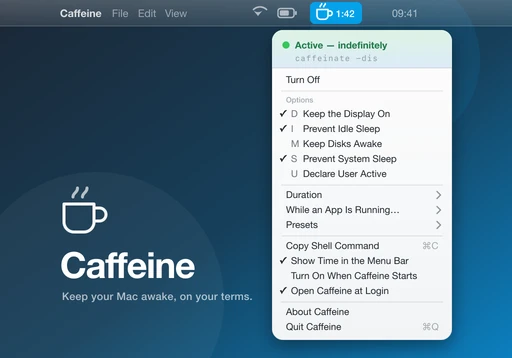
The menu opens on what is actually going on: Active — 12:34 remaining, Active — indefinitely, or Active while Final Cut Pro is running.
Exactly the control macOS offers
No more, no less. "Keep my Mac awake" is really five separate things, and you rarely want all of them at once. Each one gets its own checkbox and its own keystroke, mapping one-to-one onto a real system setting — so a long download can keep the disks spinning while the display is free to go dark.
| Key | Option | What it does |
|---|---|---|
| D | Keep the Display On | The screen never dims or sleeps. |
| I | Prevent Idle Sleep | Your Mac will not sleep just because you stepped away. |
| M | Keep Disks Awake | Drives stay spun up instead of idling down. |
| S | Prevent System Sleep | Blocks system sleep outright, on AC power. |
| U | Declare User Active | Wakes the display and reports you as present. |
Change any of them while Caffeine is running and it reapplies them instantly — without losing the time already on the clock.
Stay awake for exactly as long as you need
Four ways to say when it should stop.
A set time
A custom time
Type any number of minutes.
Indefinitely
Until you say otherwise.
Until an app finishes
Pick any running app from the menu and Caffeine stays awake for exactly as long as that app lives. Ideal for renders, exports, backups and long builds: no guessing how long they will take.
The status line reads Active while Final Cut Pro is running — and the moment the app quits, so does the assertion.
Presets for the moments you repeat
Presentation
Display on, nothing sleeps, no time limit.
Long Downloads / Builds
The work keeps going, the screen is free to sleep.
Display Only
Just keep the screen lit.
Coffee Break
Everything on, for fifteen minutes.
Built for people who like to know what is happening
The menu shows the exact command running underneath. Copy Shell Command puts it on your clipboard, ready to reuse in a script or a terminal, and tooltips spell out what each option really does — including the edge cases.
Quit Caffeine — or have it stopped by a restart, an update, or anything else — and the underlying process is always shut down with it. Your Mac never gets stuck awake because of an assertion nobody remembered to cancel.
Running underneath
caffeinate -di -t 3600Display on, idle sleep prevented, for one hour.
One click, or none
Option-click the icon to turn Caffeine on or off instantly, without even opening the menu. Nothing in the Dock, nothing in the App Switcher, no windows in your way.
Ready when you log in
Open Caffeine at Login is one checkbox — no fiddling with System Settings. Turn On When Caffeine Starts brings it up already awake.
Show Time in the Menu Bar
The countdown next to the cup, on or off, whichever suits the way you work.
Security and privacy
Signed and notarised by Apple
Signed with a Developer ID certificate issued to Arpacore B.V. and notarised by Apple, so it opens with a double click — no security warnings, no right-click workaround.
No network access
Caffeine contains no networking code whatsoever. It never phones home, has no analytics and no telemetry, and works entirely offline. The only address it can open is arpacore.com, and only when you click the link yourself.
No admin password, ever
No installer, no background daemon, no privileged helper, no kernel extension. Drag it to Applications and it runs as an ordinary app.
No special permissions
Caffeine asks for no access to your files, screen, camera, microphone, contacts or accessibility features.
Nothing exotic under the hood
It drives /usr/bin/caffeinate, the tool Apple already ships with macOS. Caffeine gives it a face; it never replaces or patches anything in the system.
Installing
- 1
Download the disk image and open it
Grab the .dmg using the button above and double-click it to mount.
- 2
Drag Caffeine onto the Applications folder
The disk image opens with both side by side. You can eject it afterwards.
- 3
Launch it from Applications or Spotlight
The coffee cup appears in the menu bar, at the top right of your screen.
Nothing seems to happen? Look at the menu bar.
The coffee cup appears at the top right of your screen. Caffeine has no Dock icon and opens no window — that is by design.
Good to know
A couple of things behave the way macOS itself behaves, and Caffeine is honest about them rather than papering over them.
Prevent System Sleep works on AC power only
On battery, macOS sleeps anyway. This is a rule of the operating system, not a limitation of Caffeine.
Declare User Active, on its own and with no duration, lasts about five seconds
That is how the underlying system call works. Caffeine notices and honestly returns to Inactive instead of pretending otherwise. Pair it with another option or a duration to keep it going.
Found a bug, or want Caffeine to do something else?