QRizer · iPhone & Apple Watch · iOS 16.6 or later
Your business card
is a QR code now.
QRizer turns your contact details into QR codes, one card per role: the company job, the freelance work, the side project, the personal one. Open the app and the card fills the screen; the other person points a camera at it and has your name, title, company, phone, email and links as a contact. No paper, no reprints, no running out.
Each card can carry a logo and its own colour, the current card sits on a Home Screen widget and on the Apple Watch, and the vCard behind it can be sent by Messages, email or AirDrop when showing a screen is not practical.
Version 1.6 · One-time purchase · Apple Watch app and Home Screen widget included
No account · No sign-in · No advertising · A secret code instead of a login
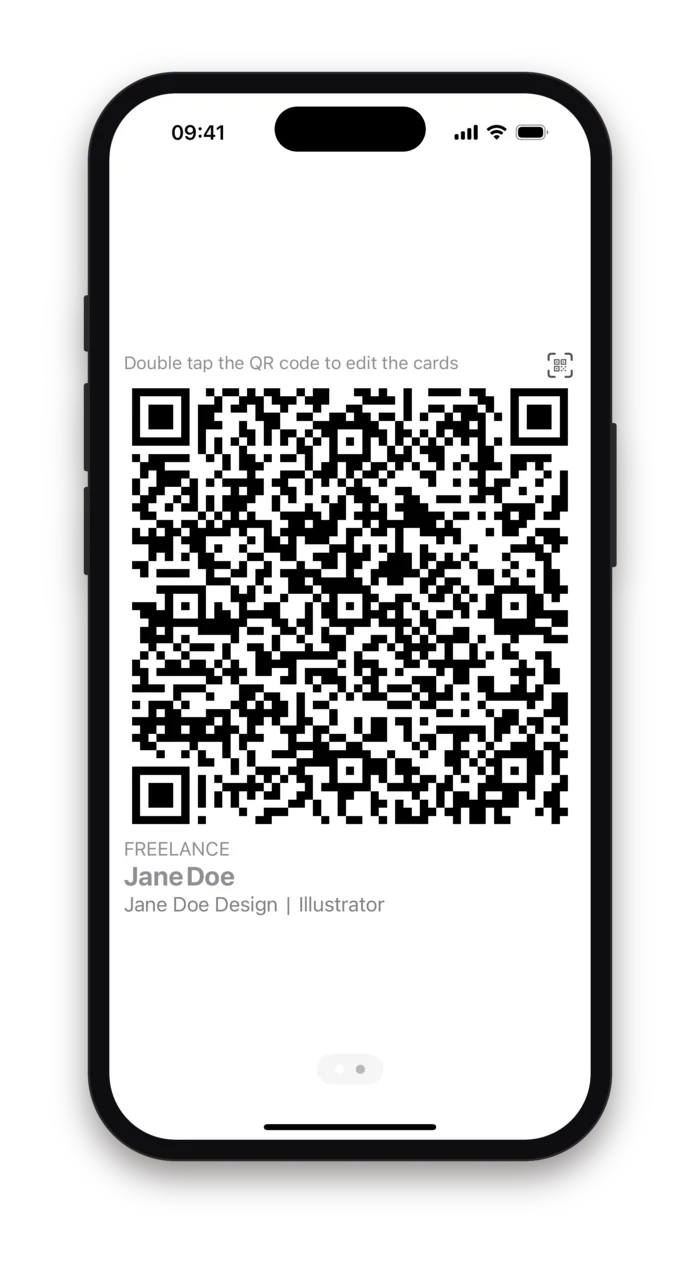
A wallet of cards, not a card
Most people have more than one way to introduce themselves. The job title on the company card is not the one you use for weekend consulting, and the email you give a client is not the one you give a friend. A paper card forces one identity; a wallet of QR cards lets you swipe to the right one before you hold the phone out.
What the camera reads is a standard vCard, so the contact lands in the other person's address book with every field in its place, on iPhone and Android alike. There is no app to install on their side and no link to tap: the code is the card.
Cards
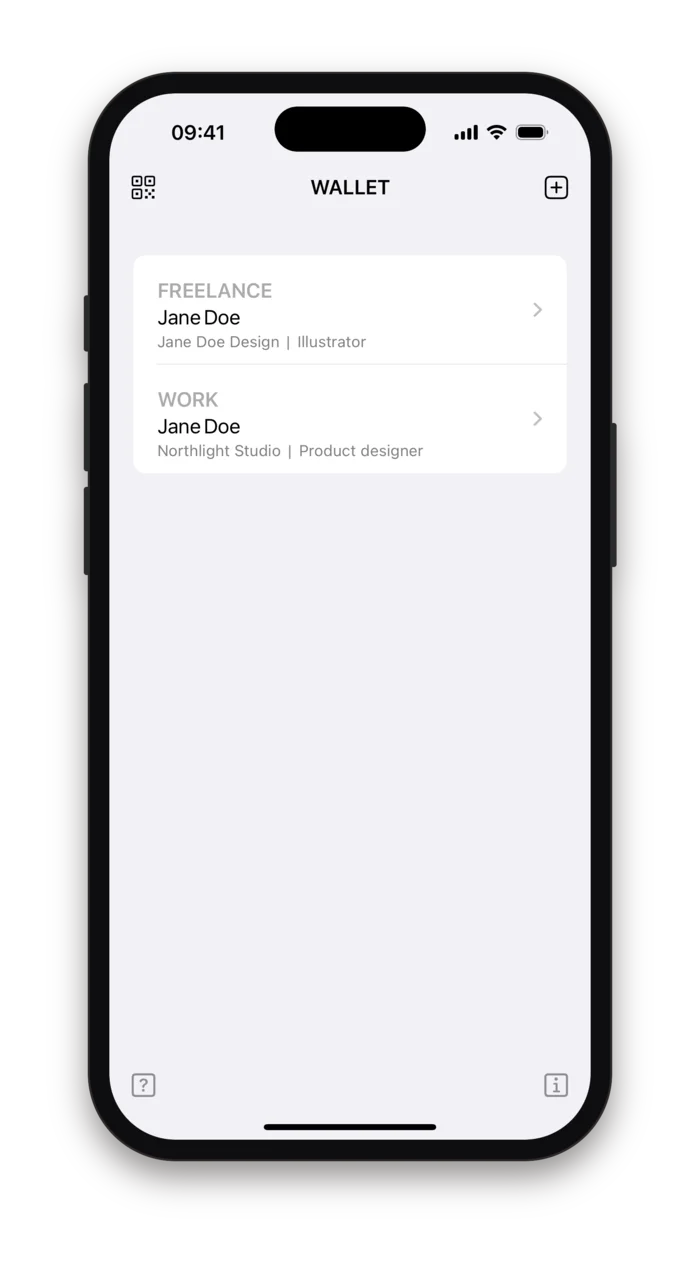
As many as you have roles. Each one has its own label, name, company, title, contacts and addresses, and shows up sorted by label in the wallet.
Codes
A standard vCard behind each QR, rendered full width for a quick scan, with an optional logo and a colour of your choosing.
Everywhere you are
The pager on the iPhone, a small widget on the Home Screen, and a Watch app that pages through the cards with the Digital Crown.
Everything a card can say
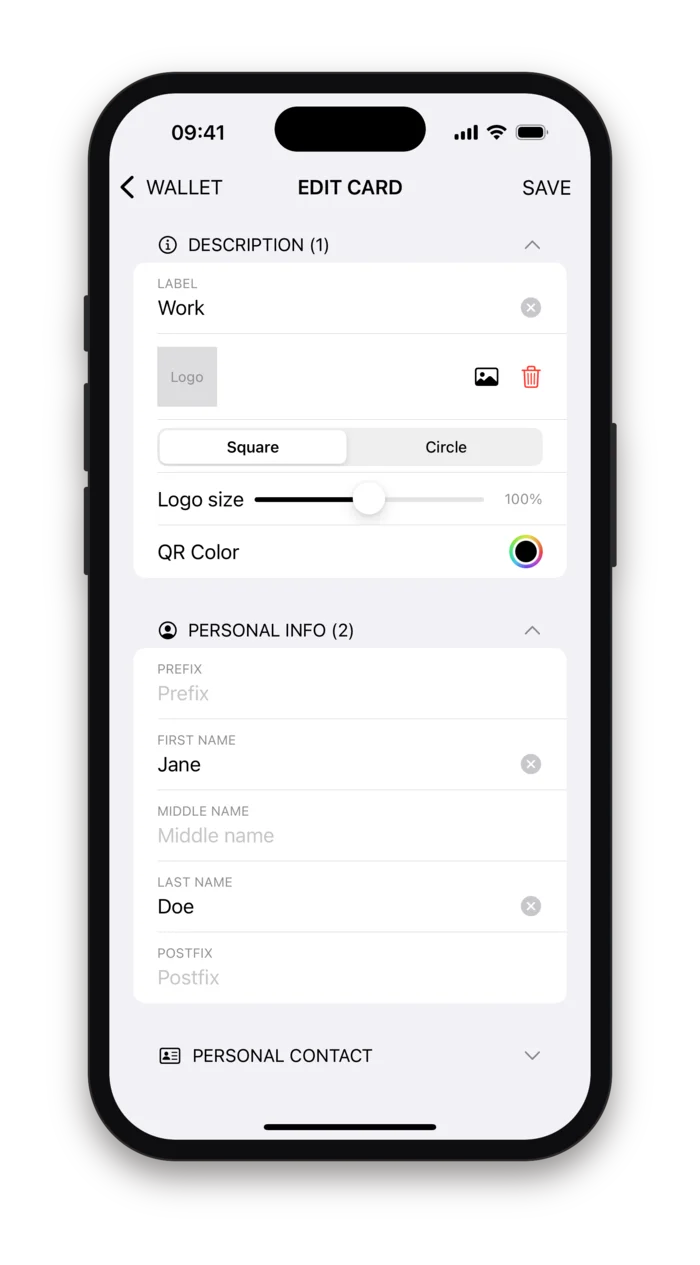
The editor is one form in eight collapsible sections. Fill in what you want on this card and leave the rest empty; a section's header shows how many of its fields are in use. Every field maps to a vCard property, so a scanner gets structured data, not a block of text.
- Description
- The label that names the card in the wallet, the logo and its shape and size, and the colour of the code.
- Personal info
- Prefix, first, middle and last name, postfix.
- Personal contact and address
- Email, phone, LinkedIn, Twitter, Facebook, Instagram and TikTok; PO box, street, city, region, postcode and country, each with a label of its own.
- Business info
- Company, department, title, web site and a social link.
- Business contact and address
- The same contact and address fields again, for the work side of the card.
- Additional info
- A note, registration number, VAT number, D&B DUNS, IBAN and BIC, for the cards that double as supplier details.
Show it, wear it, send it
The main screen is the cards themselves, one per page, the QR as wide as the phone so it scans from across a table. Swipe between roles. Double-tap a code to open the wallet and edit. The card on screen is also the one on your widget and your watch.
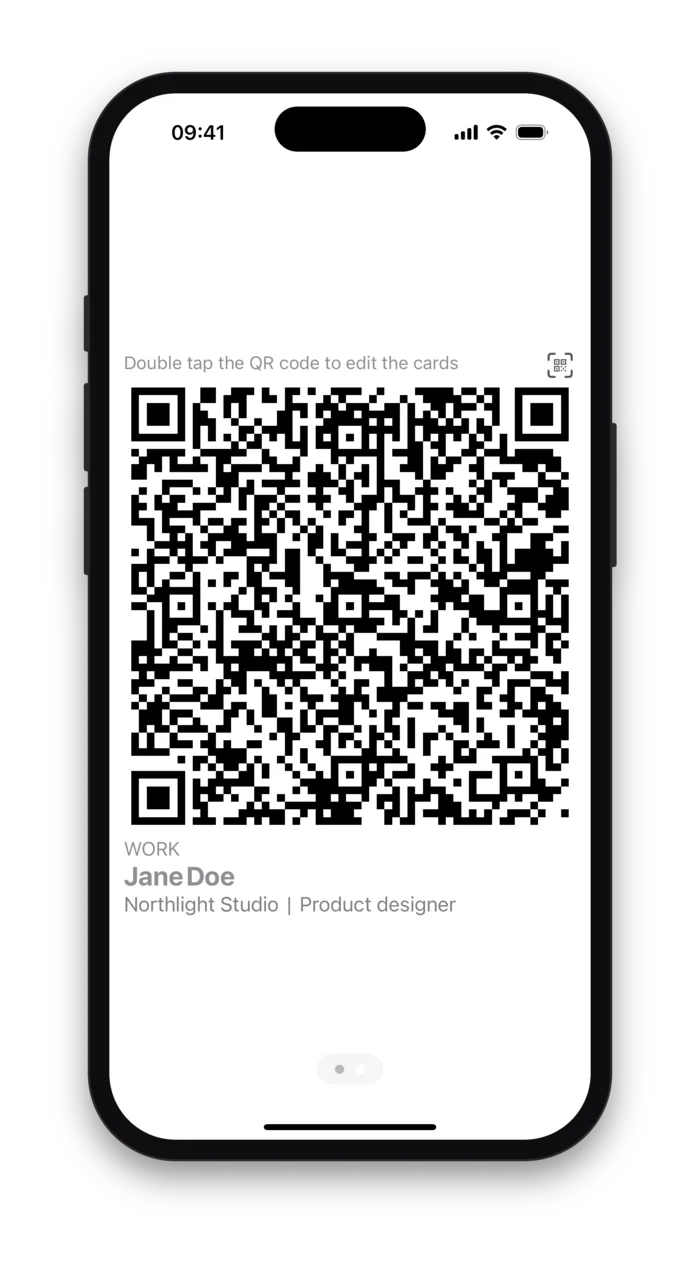
The pager
One card per page, the code as wide as the screen. Swipe to the role you need and turn the phone around.
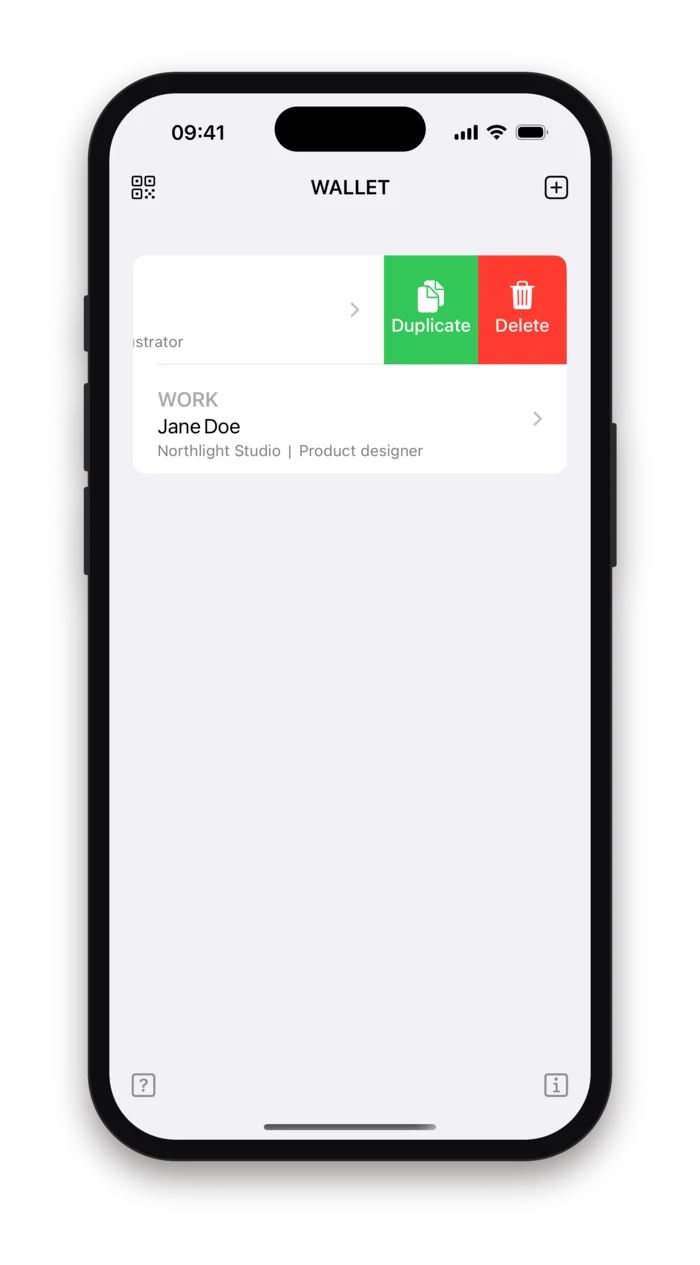
Swipe a card
Swipe one way for Duplicate and Delete, the other way for Share, which hands the vCard to the system share sheet.
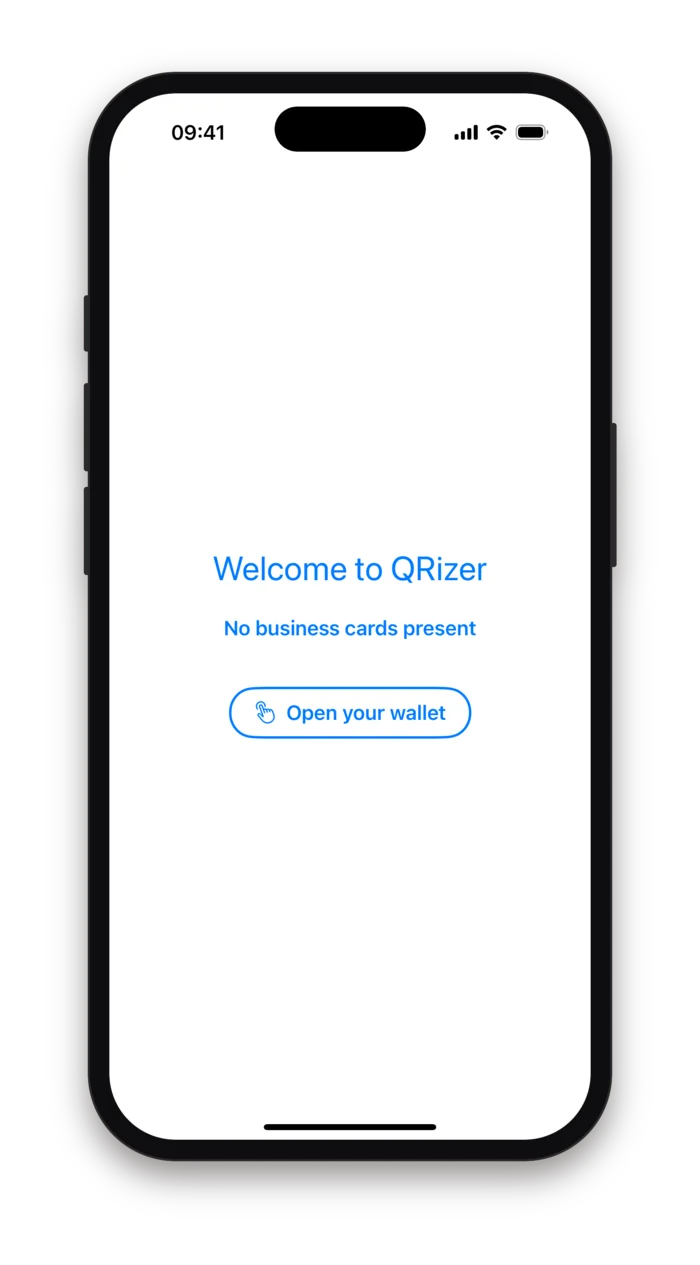
First launch
No account to make. Open the wallet, add a card, and the pager fills in. A secret code is created for you in the background.
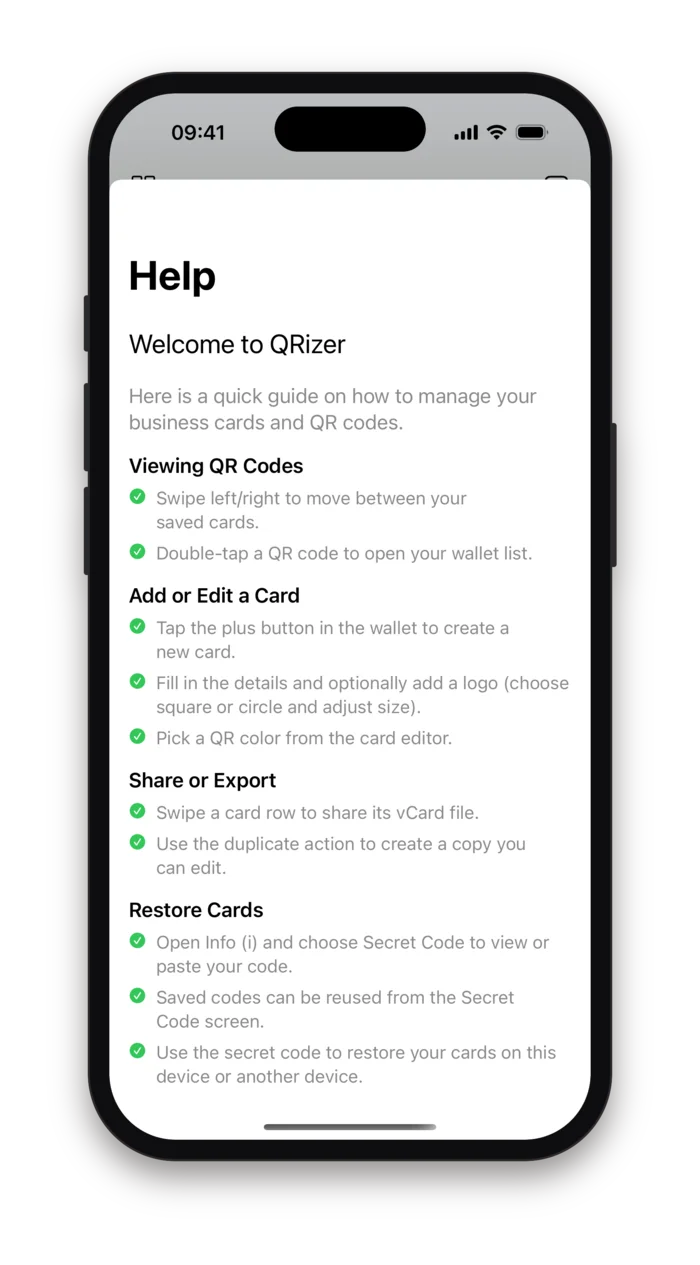
Help, in-app
Four screens of tips cover viewing, editing, sharing and restoring. Nothing here needs a manual, but the restore step is worth reading once.
- Send the vCard
- Swipe a card in the wallet to share it as a .vcf file through the system share sheet: Messages, Mail, AirDrop, Files, or any app that takes a contact.
- Duplicate
- Swipe the other way to duplicate a card and edit the copy, the quickest way to make the second role from the first.
- Widget
- A small Home Screen widget shows the card currently on the pager, so the code is one swipe from the lock screen. Tap the widget button on a card to pin that one.
- Apple Watch
- The Watch app shows the same cards with their logos, paged by swipe or by turning the Digital Crown, synced from the iPhone whenever the app is open.
Logo, shape, colour
A QR code does not have to be a black square. The Description section of each card holds a logo from your photo library, cropped in the app, shown square or in a circle and sized with a slider, and a colour picker for the code itself. Each card keeps its own, so the company card can wear the company mark and the freelance card your own.
Logo from your photos
Pick an image, crop it in the app, choose square or circle and set its size with a slider from half to one and a half times the default.
Colour per card
A system colour picker sets the colour of the modules. Dark on white scans best; the app does not stop you from choosing otherwise.
Scanned, not styled
The code is generated by iOS from the vCard text, pixel-exact, and shown without smoothing so the modules stay crisp at any size.
Keep the logo modest
The logo sits over the centre of the code and the code must still be readable around it. If a scanner struggles, slide the size down.
The shared file is the plain vCard
Sharing sends the contact data, not a picture of the code. The styling lives on your screens; the other person's address book shows their own design.
A long card is a dense code
Every field you fill adds modules. Two addresses, six social links and a note make a code that needs a steadier hand; the business card with the essentials scans from further away.
A secret code instead of an account
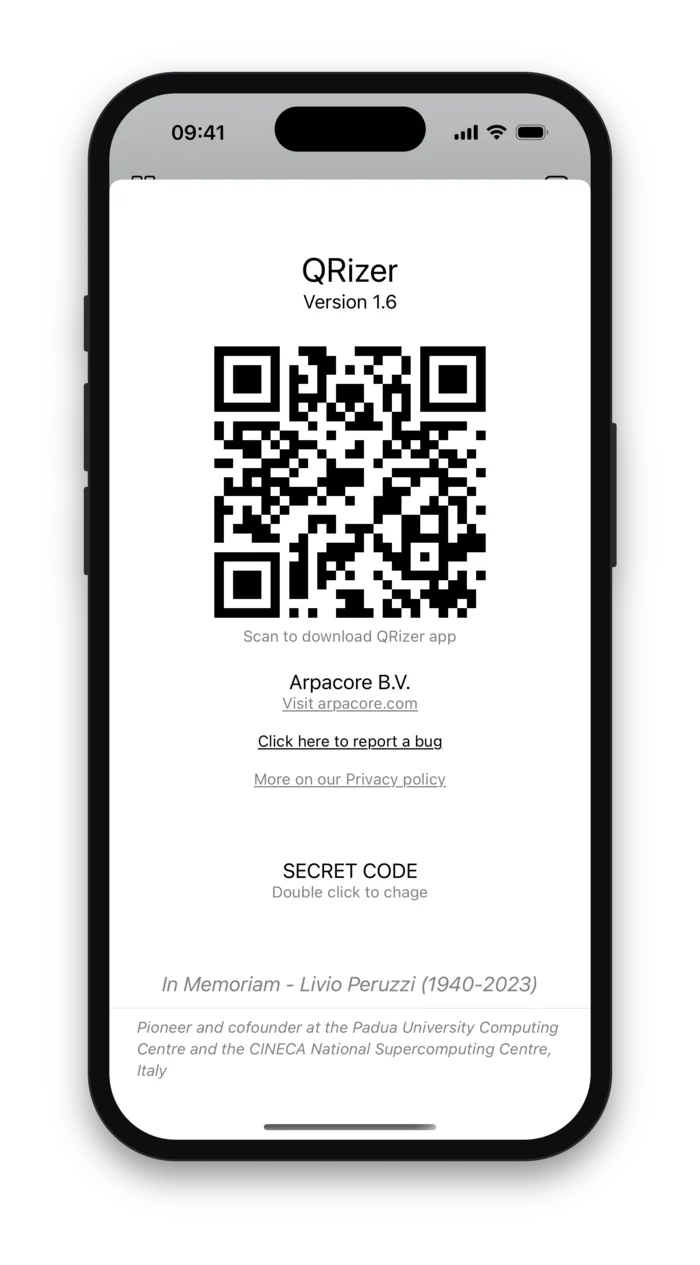
There is no sign-up. On first launch the app generates a long random code, keeps it in the iPhone's keychain, and stores your cards under it so they are there on a new phone or after a reinstall. Open Info, double-tap Secret code, copy it to the other device and the wallet follows. Nobody at Arpacore knows which code is yours.
The code is the account
A random identifier generated on your phone and kept in its keychain. Cards are stored under a one-way hash of it; the code itself is never sent anywhere.
Move to a new phone
Enter the old phone's code on the new one and the cards appear. Previously used codes are kept in a history so you can switch back.
Stored to be restorable
Cards are kept on a cloud database so a reinstall or a new device does not mean retyping. That is the only reason they leave the phone.
No profile, no advertising
No sign-in, no email address asked for, no tracking across apps, no advertising SDK. The privacy policy is two paragraphs long.
Who it is for
People with two jobs
The salaried role and the practice on the side, each with its own card, swiped to before the handshake.
Conference regulars
Three days, two hundred people, no box of cards in the bag. The widget means the code is on screen before the sentence is finished.
Small businesses
A card with the VAT number, IBAN and registration in the Additional info section is a supplier record a client can scan straight into their books.
Watch wearers
Hands full, phone in a pocket: raise the wrist, turn the crown to the right card, and let them scan.
First released in May 2023. The December 2025 releases, up to version 1.6, added the logo with its shape and size, a colour per card, the full-width QR, the saved secret codes, the in-app help, the Home Screen widget and the Apple Watch app.
Next conference, hold up the phone.
QRizer encodes the details you type as a vCard; how a particular camera app or address book imports each field depends on that app. The secret code is the only key to your cards: anyone who has it can load them, and if it is lost the cards cannot be recovered by us. Keep it where you keep passwords. The app needs a connection to load and save cards; the codes themselves display without one.