eBookDrop · Mac · macOS 14.6 or later
Your EPUBs,
on your Kindle.
A Kindle will not read an EPUB from its own storage. eBookDrop rewrites each book as AZW3 with a converter built into the app, no Calibre, no plug-ins, nothing else to install, and sends it one of three ways: over the USB cable, over your own Wi-Fi, or by email through Amazon's Send to Kindle.
Drop the books on the window, choose the route, press one button. With the Kindle plugged in you can also browse what is already on it, copy books back to the Mac and delete the ones you have finished.
Version 1.0 · One-time purchase · Native SwiftUI, sandboxed
No account · No cloud · No analytics · Your books stay yours
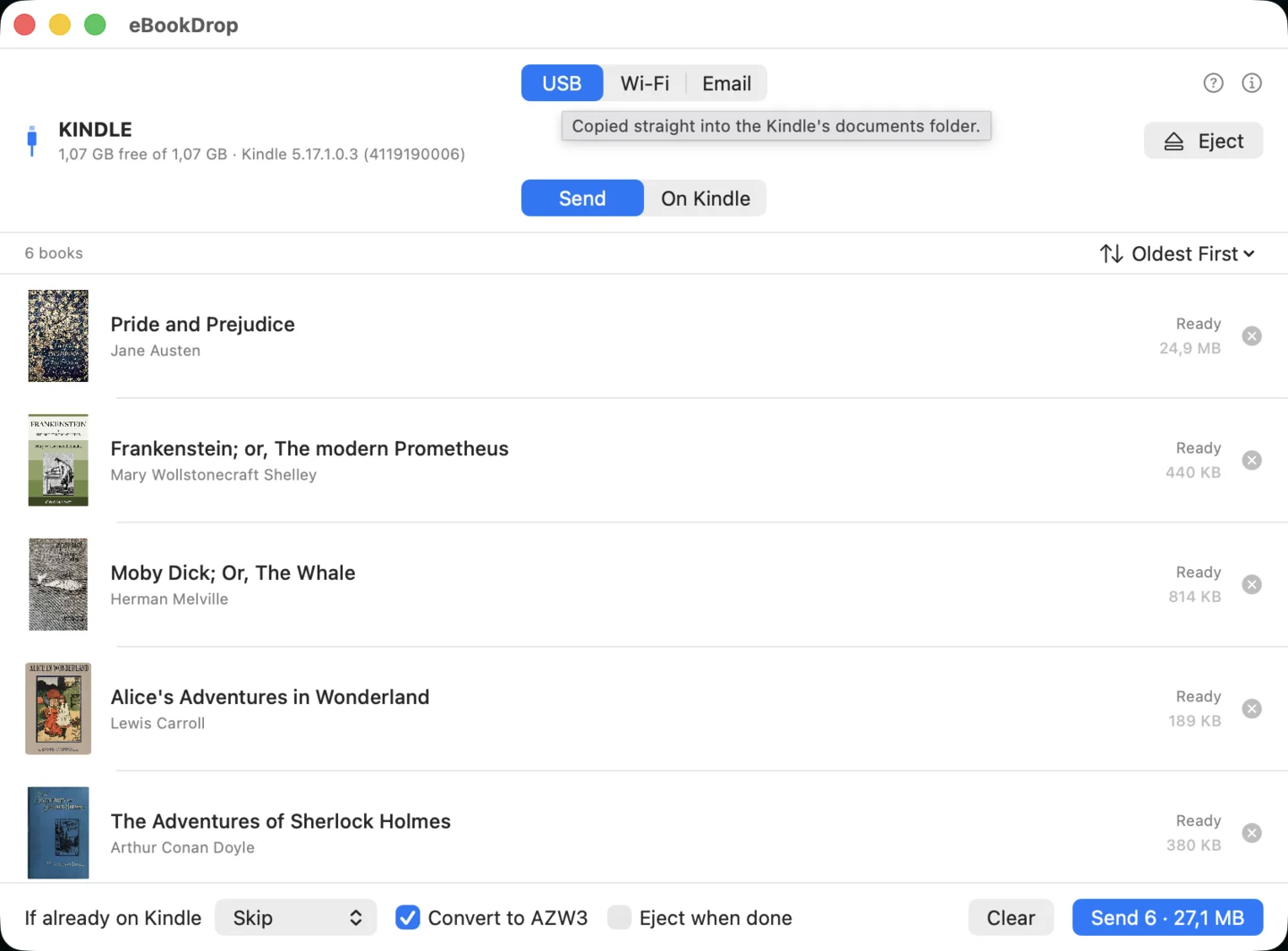
The last step of every EPUB
Books from a publisher's shop, a library, Project Gutenberg or your own writing arrive as EPUB. The Kindle reads AZW3 and MOBI and, as of a couple of firmware versions ago, an EPUB sent through Amazon's service, which converts it on their servers. For everything else the usual answer has been Calibre, a large program with a conversion pipeline and a plug-in ecosystem, for a job that takes one click.
eBookDrop is that one click. It reads the EPUB itself, writes a proper KF8 AZW3 with the cover, the chapters, the table of contents and the metadata, installs the cover thumbnail the device will not generate on its own, and gets the file onto the Kindle. It does not try to be a library manager, an editor or a reader.
USB
Straight into the documents folder, with cover thumbnails, duplicate detection and a safe eject. The fastest route and the only one that can see what is on the device.
Wi-Fi
The Mac serves the books on your own network; the Kindle downloads them in its browser from an address and a QR code. No cable, no account, no cloud.
Amazon's Send to Kindle, with the app's own mail client. Set the account up once; the password goes to your login keychain, not to the app's settings.
Over USB: the fast route, and the only one that sees the device
Plug the Kindle in with a data cable, allow access once, and its name, free space and firmware version appear in the bar. The books are converted and copied straight into the documents folder, the cover art goes into the thumbnails folder, and when it is done the Kindle is ejected so it rebuilds its library.
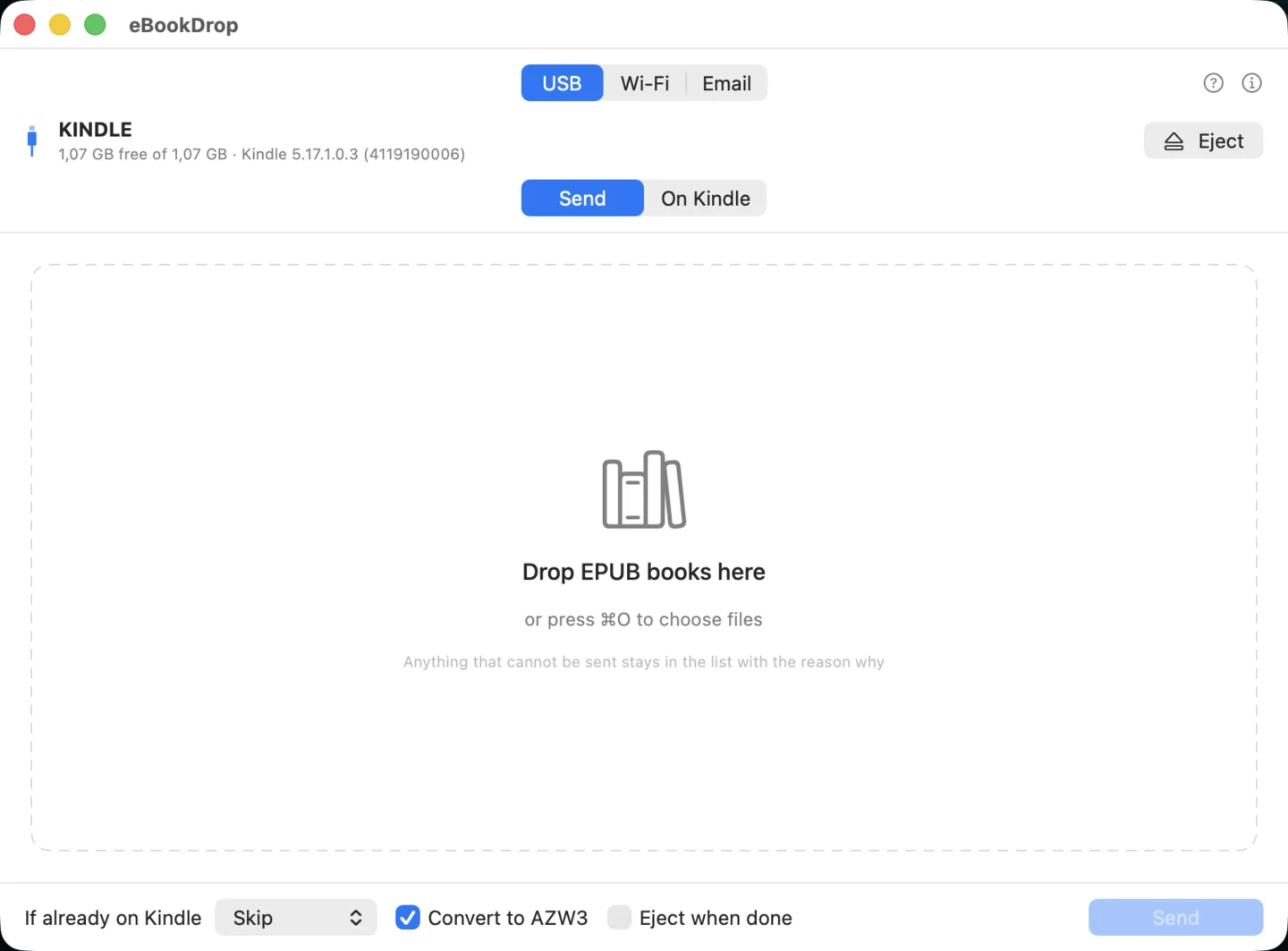
The drop zone
Drag books or whole folders out of Finder onto the window, or press ⌘O. Folders are searched for EPUBs; Apple Books' unpacked book folders work too.
Sent
Each row shows its state as it goes: Reading, Ready, Converting with a percentage, Sending, Sent. Stop cancels cleanly and leaves nothing half-written on the device.
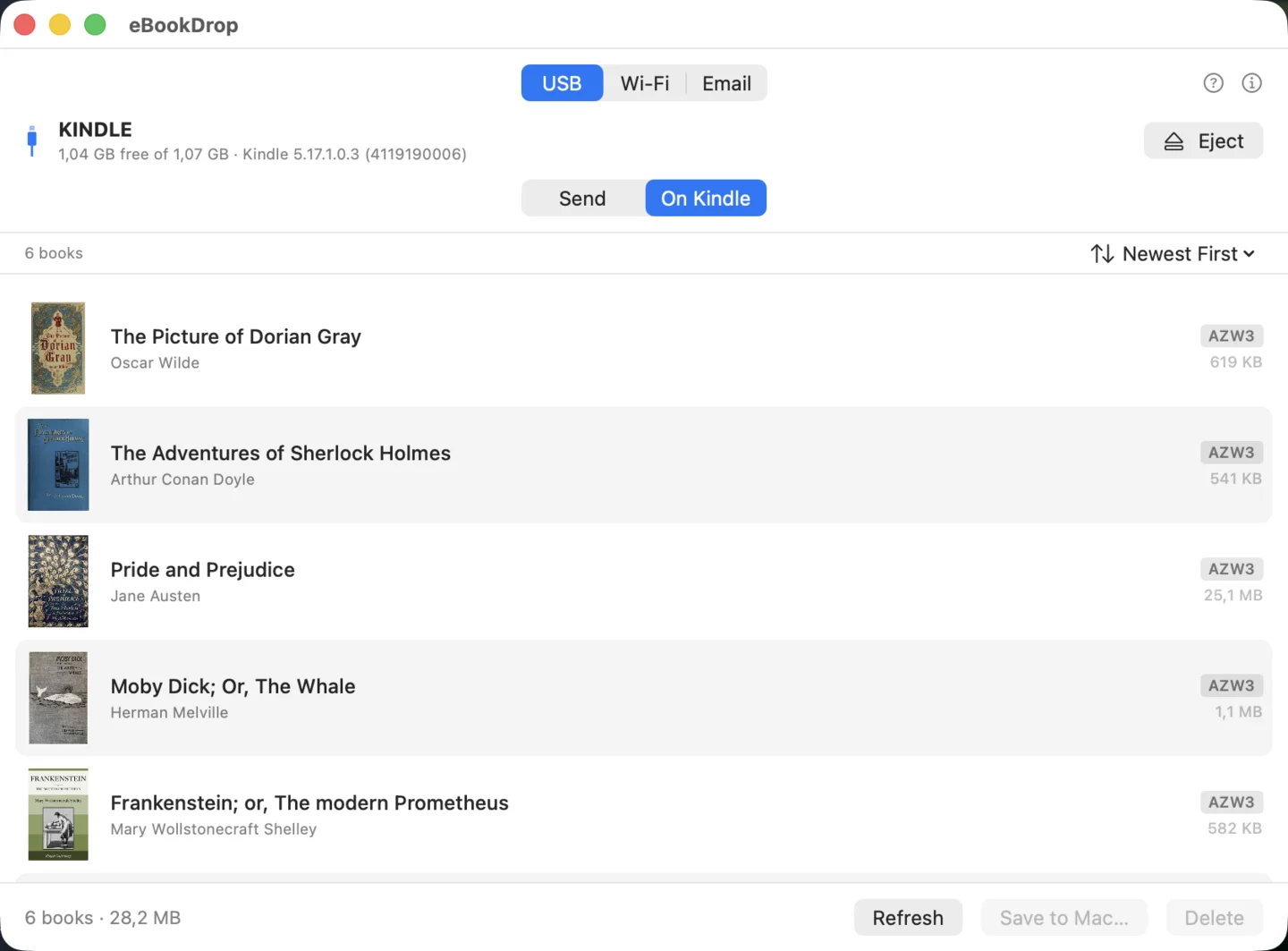
On Kindle
With the device connected, browse everything in its documents folder with covers and authors. Select books to copy them back to the Mac or to delete them, notes and reading positions included.
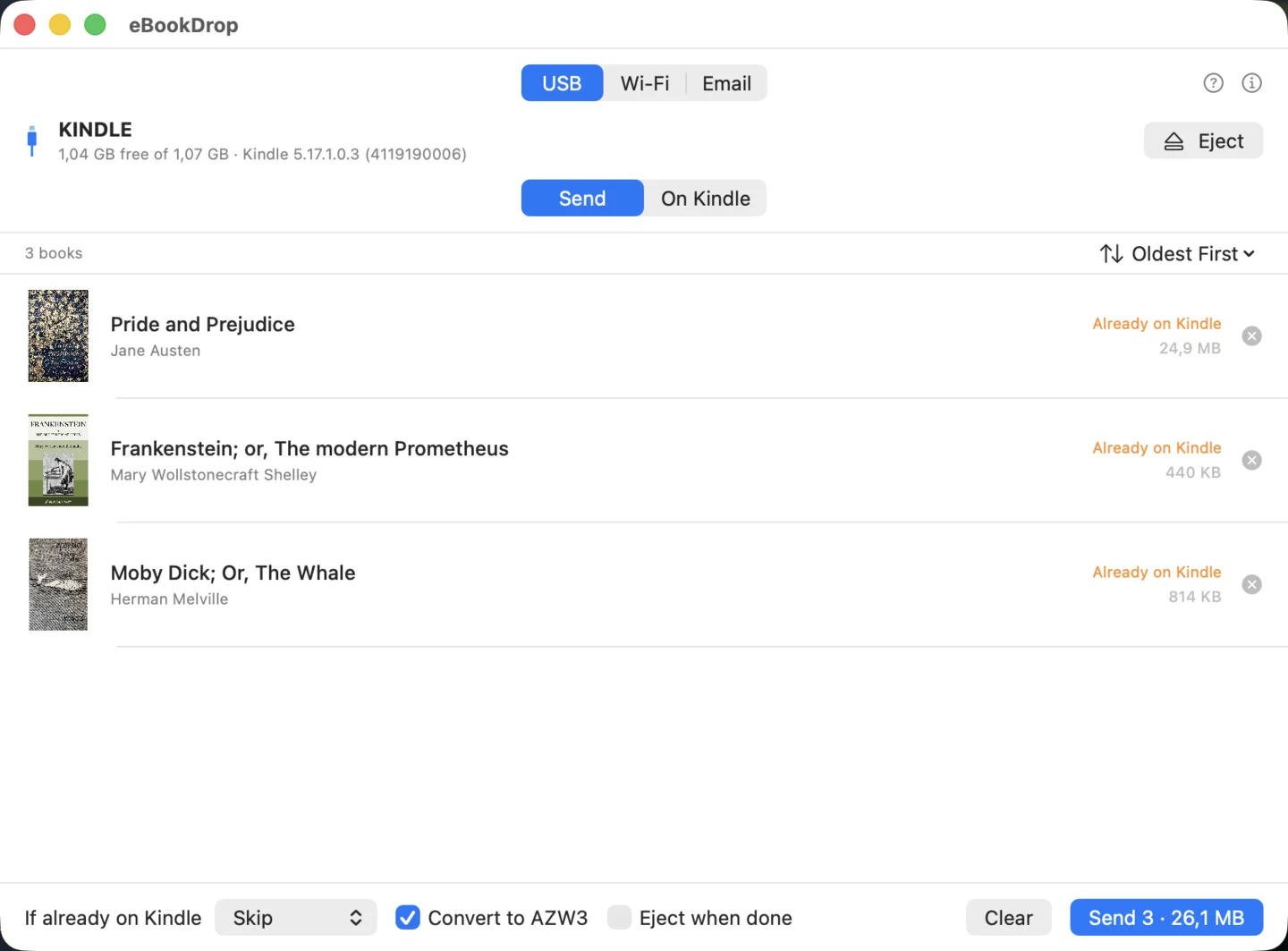
Already on Kindle
Books the device already has are flagged before you send. Choose whether to skip them, replace them or keep both; the check is only possible over USB, where the app can see the device.
- Allow access once
- The app is sandboxed, so macOS asks you to allow the Kindle the first time it is plugged in. The permission is remembered per device.
- Cover art the Kindle will not make
- Sideloaded books normally show a generic cover in the grid. eBookDrop writes the thumbnail into the device's own thumbnails folder, so yours look like bought ones.
- Free space, checked first
- Before copying, the app compares the size of the batch with the space left on the device and tells you if it will not fit.
- Eject when done
- The Kindle only rebuilds its library when it is unmounted. Leave the toggle on and the app ejects it for you; the summary line says when it is safe to unplug.
Over Wi-Fi: no cable, no account, nothing leaves the house
A Kindle offers no file service on the network, but it has a web browser. Press Share and eBookDrop serves the converted books from the Mac at an address it shows with a QR code; open that address in the Kindle's browser and tap a title to download it. The server runs only while you are sharing, on your own network, and an interrupted download resumes where it stopped.
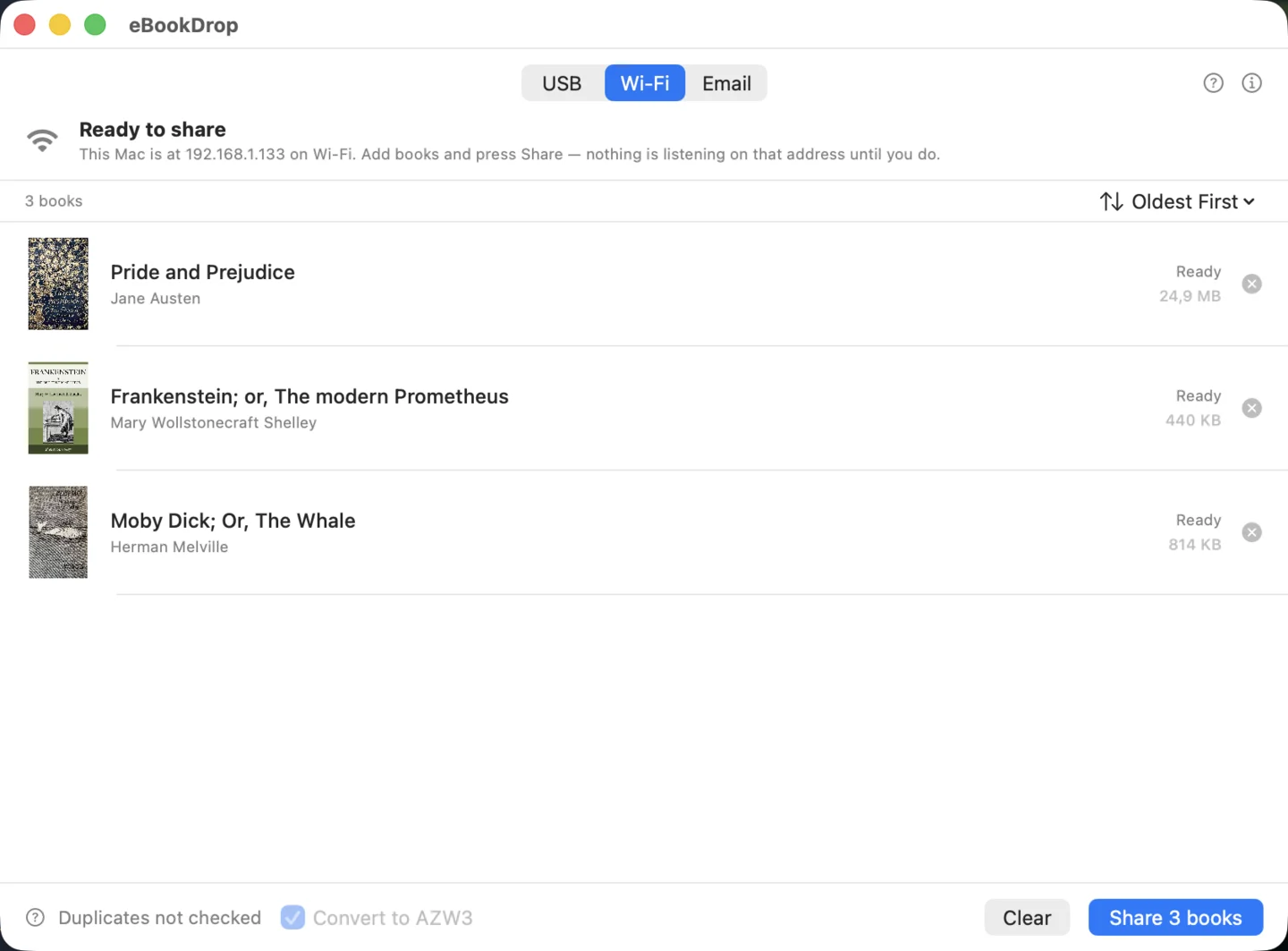
Ready to share
The bar names the Mac's address on the network and says, plainly, that nothing is listening until you press Share. If the Mac is on more than one network you pick which one.
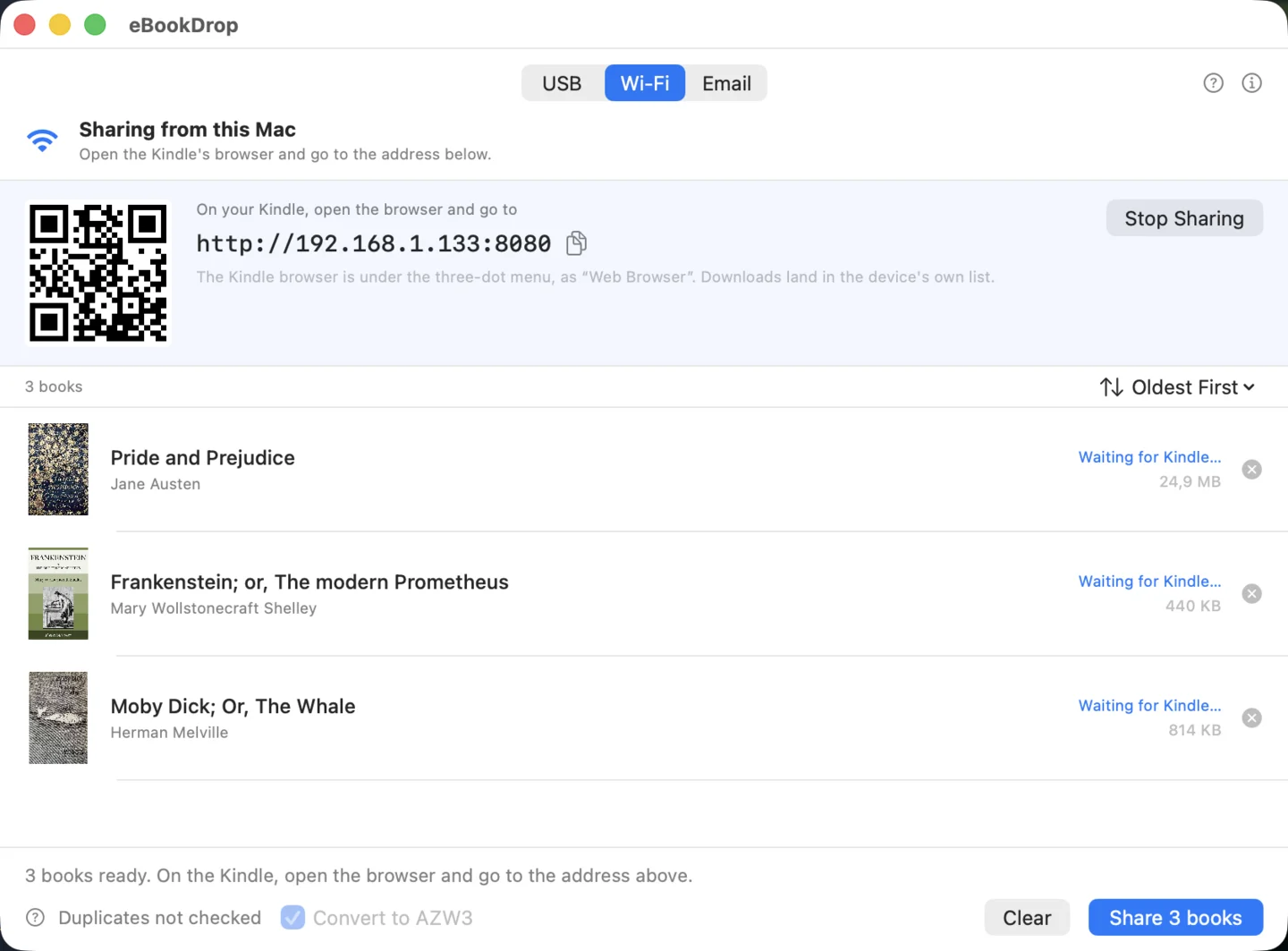
Sharing
Scan the code or type the address in the Kindle's browser; the page lists the books, one tap each. Each row turns to Sent when the download completes, and Stop Sharing closes the server.
By email: Send to Kindle, from inside the app
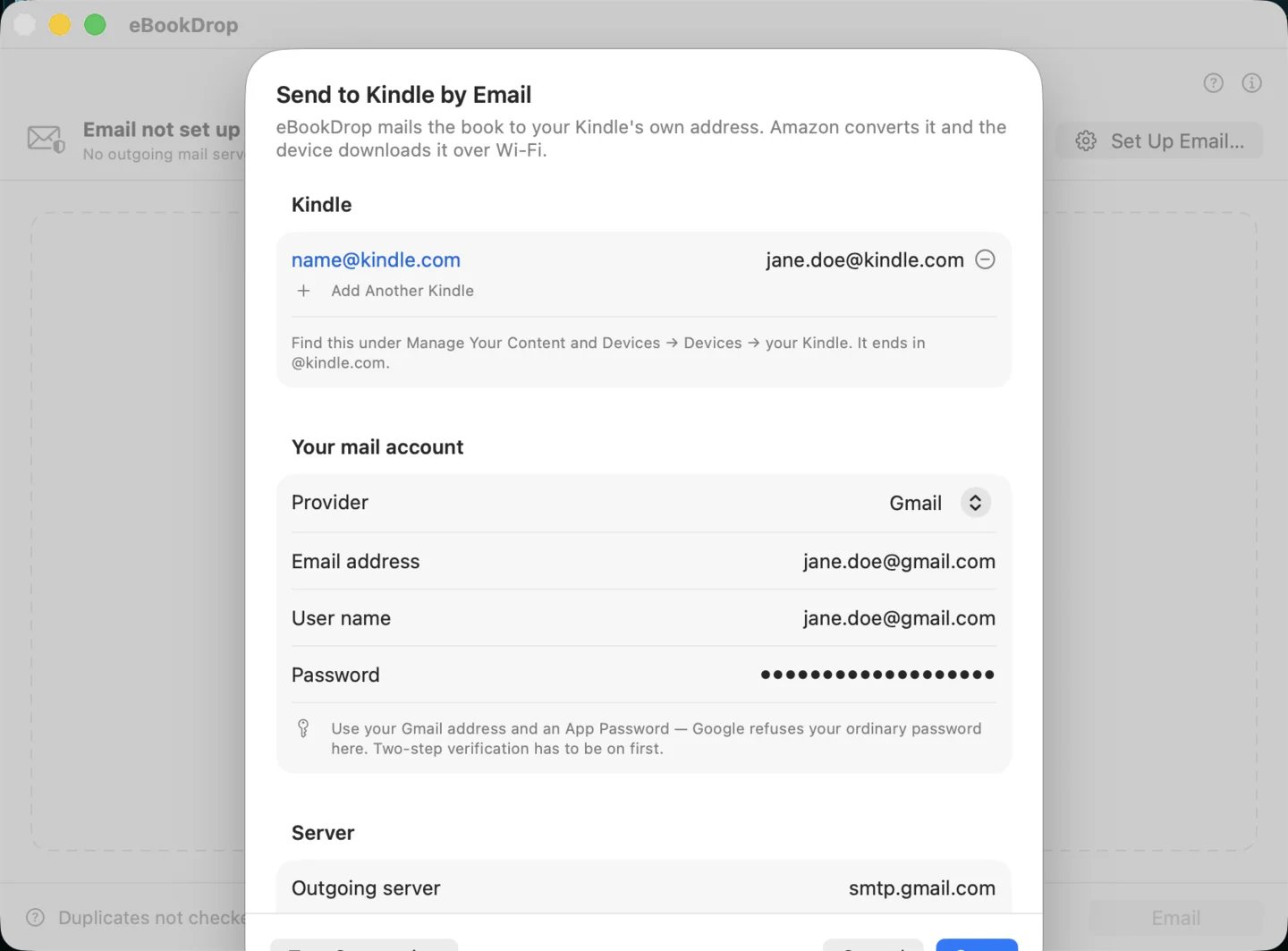
Every Kindle has an email address, and anything mailed to it from an approved sender lands on the device over Wi-Fi wherever it is. eBookDrop has its own mail client for exactly this: set the account up once, with presets for iCloud Mail, Gmail, Outlook, Yahoo and Fastmail, and the books go out from anywhere you have a connection. On this route the original EPUB travels, because Amazon converts it on arrival.
- Presets, and Other
- iCloud Mail, Gmail, Outlook, Yahoo and Fastmail fill in the server, port and security for you. Any other provider takes the same four fields.
- Test Connection
- Signs in and hangs up without sending, so a wrong password shows up during setup and not halfway through a queue.
- The approved sender
- Amazon discards mail from addresses that are not on your Approved Personal Document E-mail List. The app reminds you after each send, and the help explains where to add it.
- The limit
- Send to Kindle accepts attachments up to 50 MB. A bigger book is refused in the list with the advice to use USB or Wi-Fi instead.
A converter of its own
The EPUB reader and the AZW3 writer are part of the app, written for this job. They cover what a book needs on a Kindle and refuse, with a reason, what they cannot handle.
EPUB 2 and 3
Title, authors, publisher, language, description and subjects, the cover whichever way the EPUB declares it, and the table of contents from the navigation document or the NCX. Stylesheets are inlined, scripts dropped, images embedded.
KF8 AZW3 the device expects
A single-format KF8 file with PalmDOC compression, chunk and skeleton indexes, a cover and a thumbnail record, and the content ID and document type that make the Kindle show your cover instead of looking for one in the store.
What it does not do
No embedded fonts, no fixed-layout or comic books, no MathML, and links within a document jump to the start of the chapter. Books over four gigabytes are not supported.
Serial, deliberately
One book converts at a time and one sends at a time, with progress on the row. A queue of thirty books finishes in the order shown and the window stays usable throughout.
| What you drop | What the list says |
|---|---|
| DRM EPUB | Copy-protected (DRM), so its pages cannot be read or converted. Books from the Apple Books, Kobo or Google Play stores open only in their own app. |
| .acsm | An Adobe download link, not the book itself. Open it in Adobe Digital Editions to get the EPUB. |
| Cloud placeholder | Stored in the cloud and not downloaded to this Mac. Open it once in Finder, then drop it again. |
| AZW3, MOBI, PDF, TXT | The Kindle reads these as they are: copy the file into its documents folder in Finder. eBookDrop only converts EPUB. |
| Empty or corrupt file | Zero bytes, a download that never finished, a ZIP that is not an EPUB, a damaged entry: each gets its own sentence. |
Nothing is dropped in silence. A file that cannot go stays in the list with the sentence in red, and the built-in help walks through all three routes, including how to make an app password for Gmail.
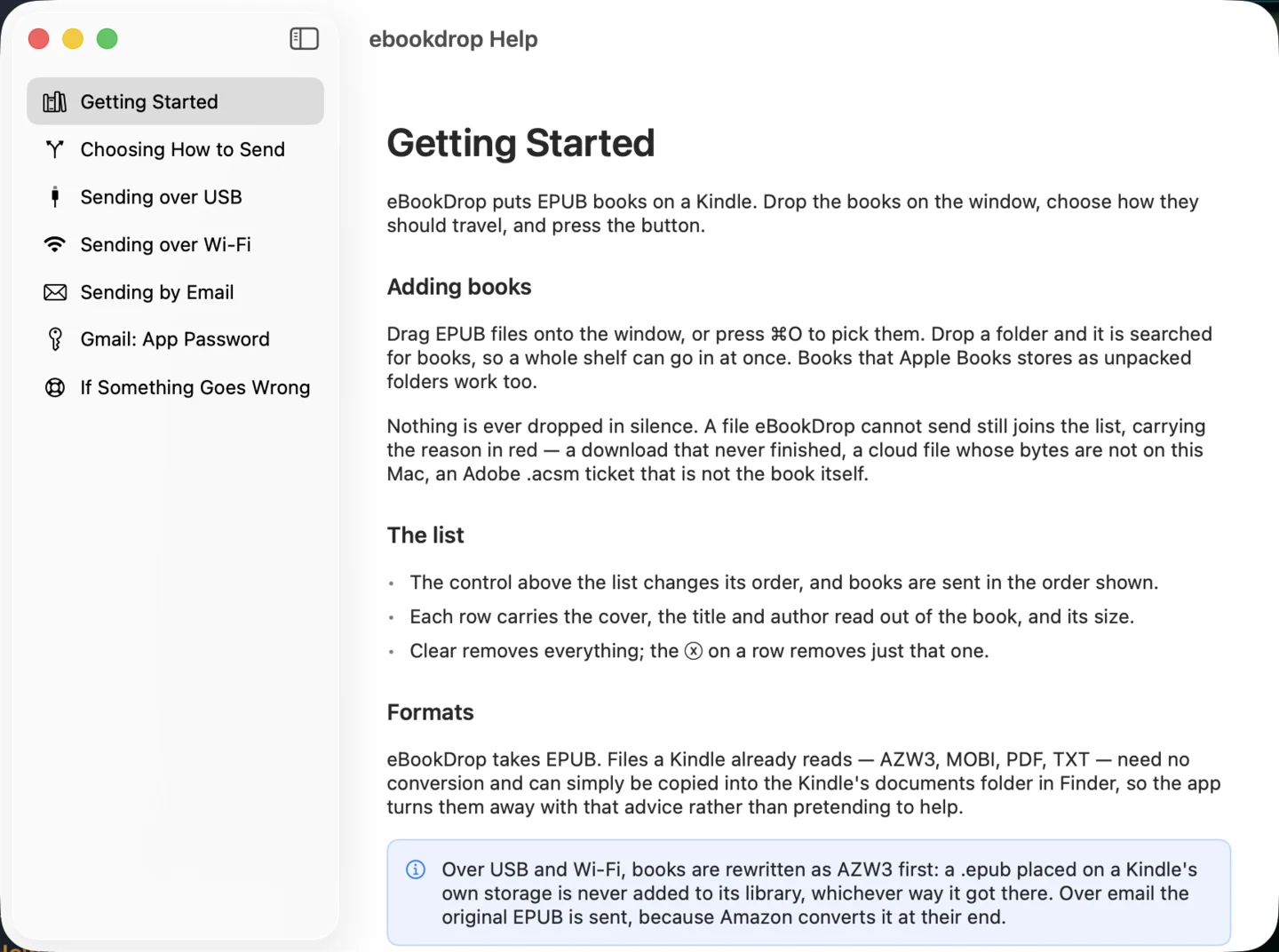
It explains itself
Seven help topics cover the whole app: what it does, how to choose a route, each route step by step, Gmail's app password, and what to do when a book does not arrive. The language is the same as in the window: plain sentences, no jargon that the Kindle's own screens do not use.
The help is in the app, not on a website, so it is there on the train with no connection, which is where you tend to discover that the book you wanted is not on the device.
Your library is nobody's business
The app is sandboxed and reads only the files you give it and the Kindle you allow it to see. It has no account, no server, no update check and no analytics. The only connections it ever opens are the ones you ask for: your mail provider when you send by email, and the Kindle's browser on your own network when you share over Wi-Fi.
Sandboxed
The app sees only the files you drop or choose and the Kindle volume you allow. It cannot wander through your disk.
Password in the keychain
Your mail password is stored by macOS in your login keychain, under the app's own entry. Server, port and addresses are in the app's settings.
Wi-Fi stays local
The share server listens on the Mac's own address for as long as you share, then stops. No relay, no cloud, no upload anywhere.
Nothing collected
No account, no analytics, no crash reporting, no update check. The App Store privacy label reads "Data Not Collected".
Who it is for
Readers with an EPUB library
Years of DRM-free purchases, a public-domain shelf, a library's lending files. Drop a folder and the whole shelf goes over in one batch.
Writers and editors
Proof the manuscript on the device it will be read on. Export to EPUB, drop, read in bed, repeat tomorrow with Replace.
Students
Course readers and papers that arrive as EPUB, sent by email from the library Wi-Fi to a Kindle that stays in the bag.
The household Kindle manager
Several readers, one Mac. Set up each Kindle's address once, pick the recipient, and the right book reaches the right device.
Released in August 2026 as version 1.0. eBookDrop is not affiliated with, endorsed by or sponsored by Amazon; Kindle and Amazon are trademarks of Amazon.com, Inc.
Drop the book. Read it tonight.
eBookDrop converts and transfers books you are entitled to copy. It cannot open copy-protected EPUBs, and it does not remove or circumvent any protection: a DRM book from the Apple Books, Kobo or Google Play stores is refused with a message. Send to Kindle is Amazon's service and subject to its limits and approved-sender rules; the Wi-Fi route depends on the browser in your Kindle's firmware. Kindle and Amazon are trademarks of Amazon.com, Inc.